





Press play to start listening
There are lots of ways you can lose your important data on the iPhone. For example, accidentally deleting files, an unsuccessful iOS update, the device is damaged, or you just bought a new phone. Apart from Apple providing restoration from backup by iCloud, one must erase the iPhone and perform a factory reset to be able to restore the backup.
Fortunately, retrieving data from an iCloud backup without having to erase your current files and settings is not something out of the question. Using modern recovery techniques and software, people nowadays can choose which data they want to recover, such as photos, messages, contacts, etc., without compromising their other content at all.
This article will guide you through the process to recover data from an iCloud backup without resetting your iPhone.
Understanding How iCloud Backup Recovery Works
What Data Is Stored in an iCloud Backup?
One purpose of an iCloud backup is to store a variety of important information from your iPhone so that you can get back your data in case you need it. Generally, this will be your camera roll photos and videos, messages and iMessage attachments, contacts, call history, notes, reminders, app data, and device settings. Some backups may also include data from third-party apps like WhatsApp and Viber if the apps are set to store data in the backup.
Why Apple’s Default Method Requires a Reset
Apple’s official method of restoration from an iCloud backup first requires people to erase all content and settings on their iPhone. So, all old data, applications, and settings of the phone will be deleted before the backup is restored.
This method can even delete any new stuff saved since the backup was made, and it might be quite slow as users must set up the phone again, download apps, and enter passwords.
Is It Possible to Recover Data Without Resetting?
Yes. Rather than doing a complete restoration, people these days are opting for partial recovery techniques. These methods will show you what you have so you can decide to recover only, e.g., pictures, texts, and phone book, while you can keep the rest of your iPhone data untouched.
Recovery programs made by third parties simplify and secure the whole operation, which is a major concern for people who have iOS versions up to date. Also, these applications are great as they can perform an iCloud backup scan directly and pick what to extract, which means no needless data loss.
Best Way to Recover Data from iCloud Backup Without Resetting
One of the best ways to retrieve data from an iCloud backup without your iPhone being reset to factory settings is to perform a selective recovery rather than using Apple’s full restoration method.
For example, Wondershare Dr.Fone – Data Recovery (iOS) is software that helps you integrate your iCloud account, check the backups, and identify the files that can be restored. You can recover multiple types of data (photos, SMS, contacts, etc.) without deleting the data present on your iPhone or resetting the phone to factory settings.
Key features:
- Granting access to iCloud backups while skipping factory reset
- Provision of recovery preview so that only necessary files get restored
- Selective recovery capability of photos, messages, contacts, WhatsApp, etc.
- Compatible with recent iOS versions and devices
- Operates by reading-only to scan to keep data safe and unchanged
- Ability to recover from iCloud, iTunes, and device storage in a single application
Step-by-Step Guide to Recover Data from iCloud Backup Without Resetting
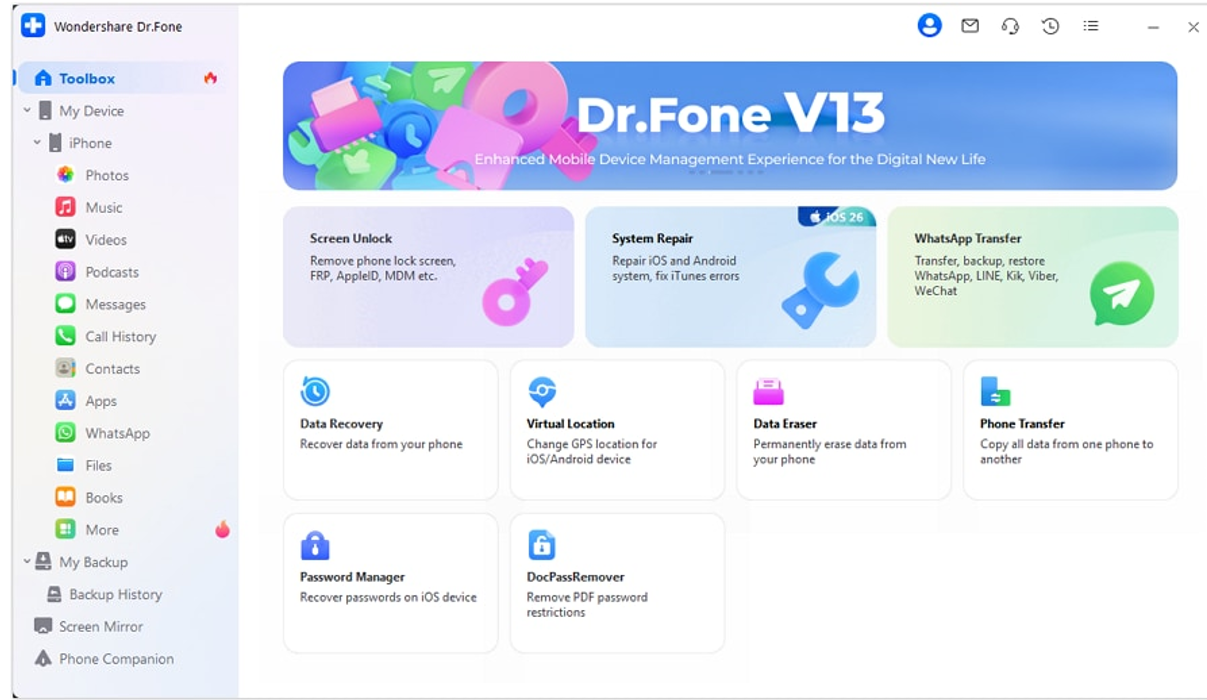
Step 1. Launch Wondershare Dr.Fone on your PC. Click on the Toolbox in the left panel and then select Data Recovery.
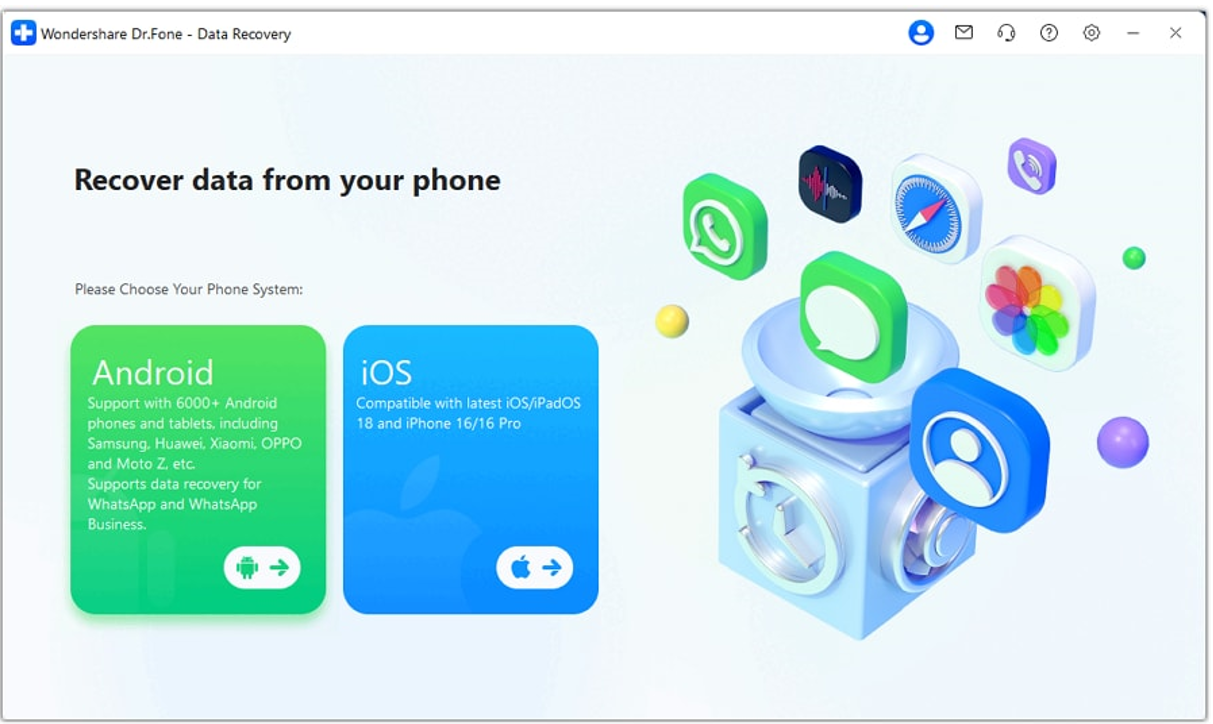
Step 2. Here, you must choose iOS Data Recovery. It will make sure that you are following the right recovery route for iPhone/iCloud data.
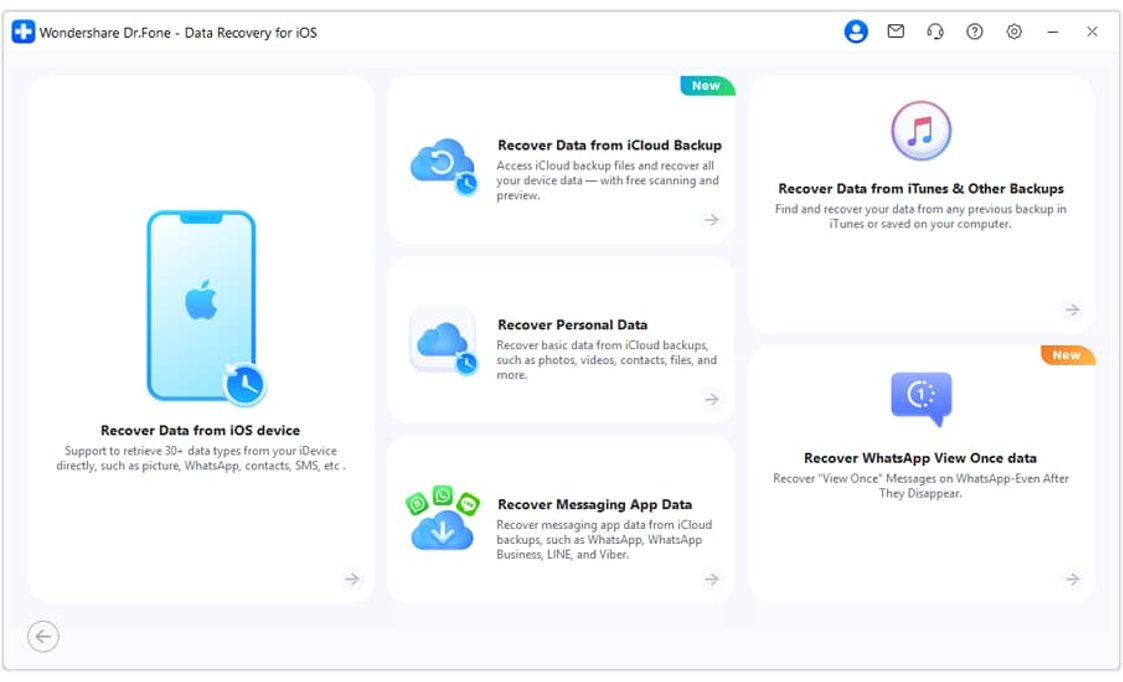
Step 3. Now pick up Recover Data from iCloud Backup. With this option, you will be able to access iCloud backups without having to restore them to your iPhone.
Step 4. Use your Apple ID and password to sign in.
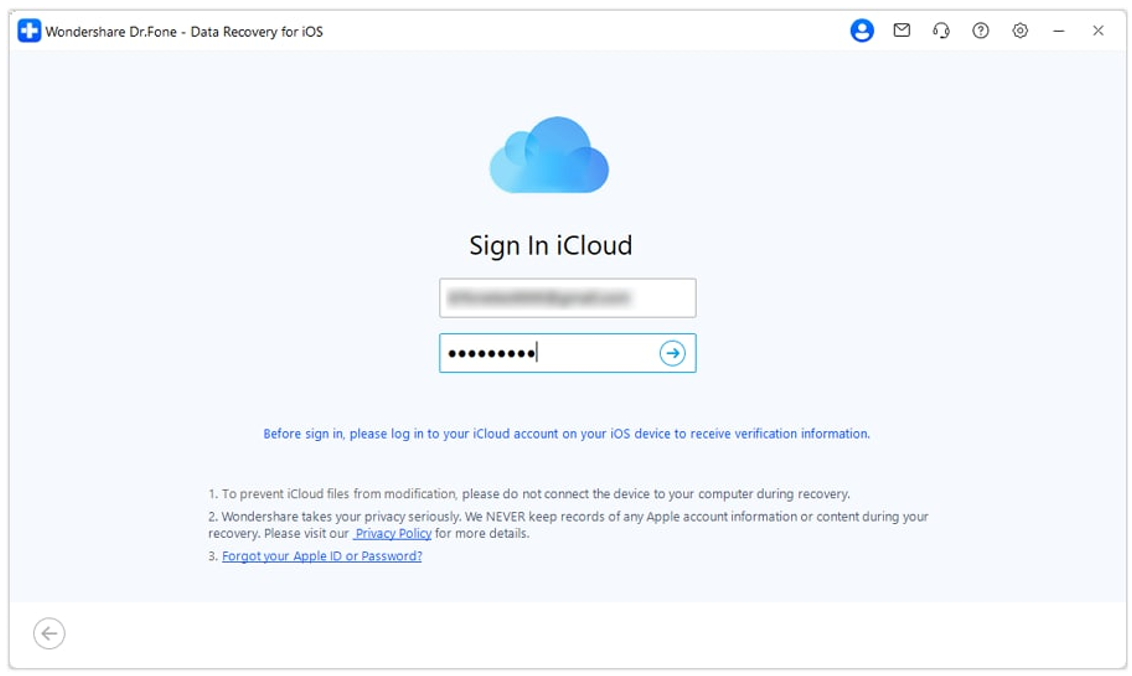
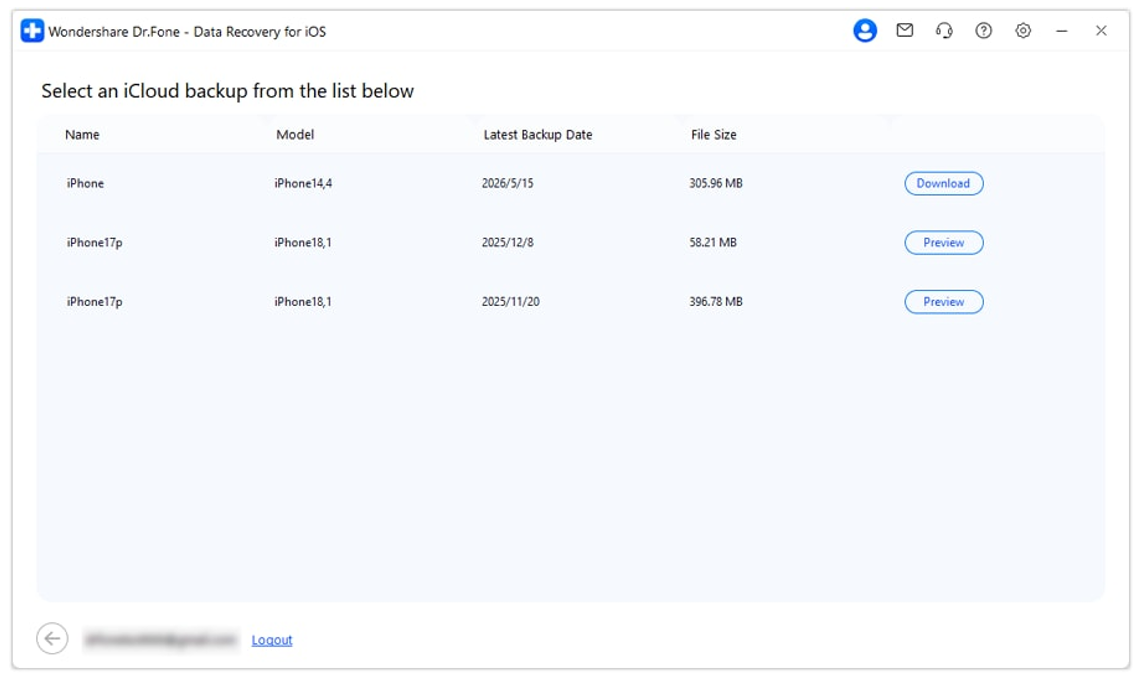
Step 5. When you have successfully signed in, be patient as the Wondershare Dr.Fone loads all the iCloud backups available under your account. When they are displayed, click on the backup that you want and then press Download.
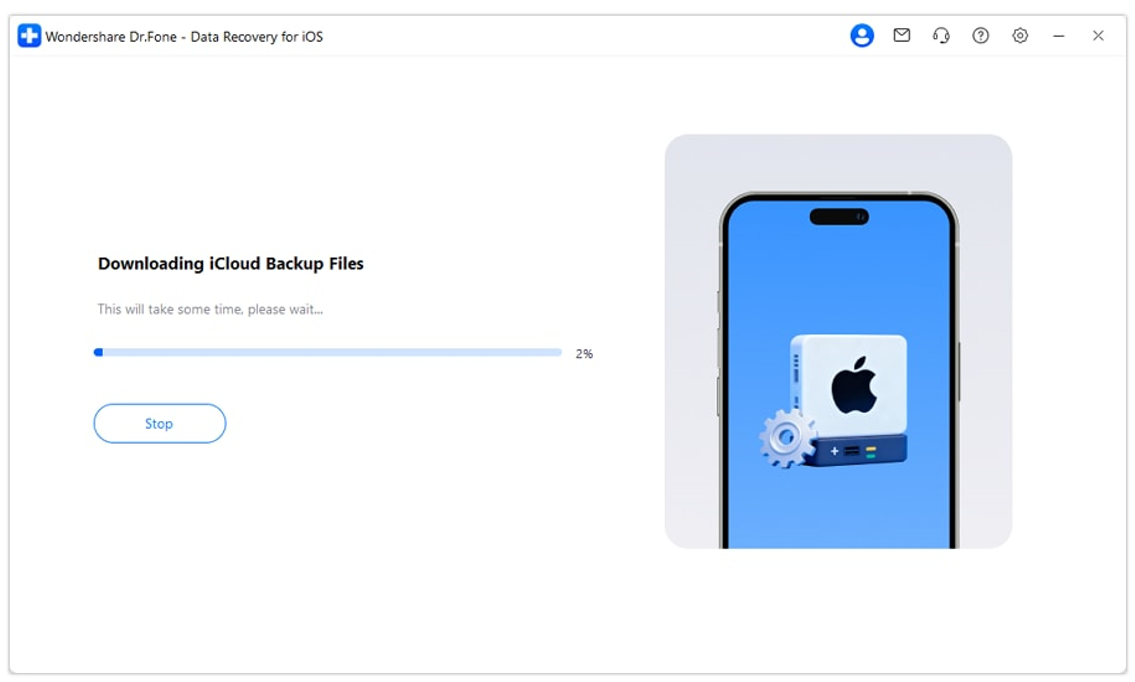
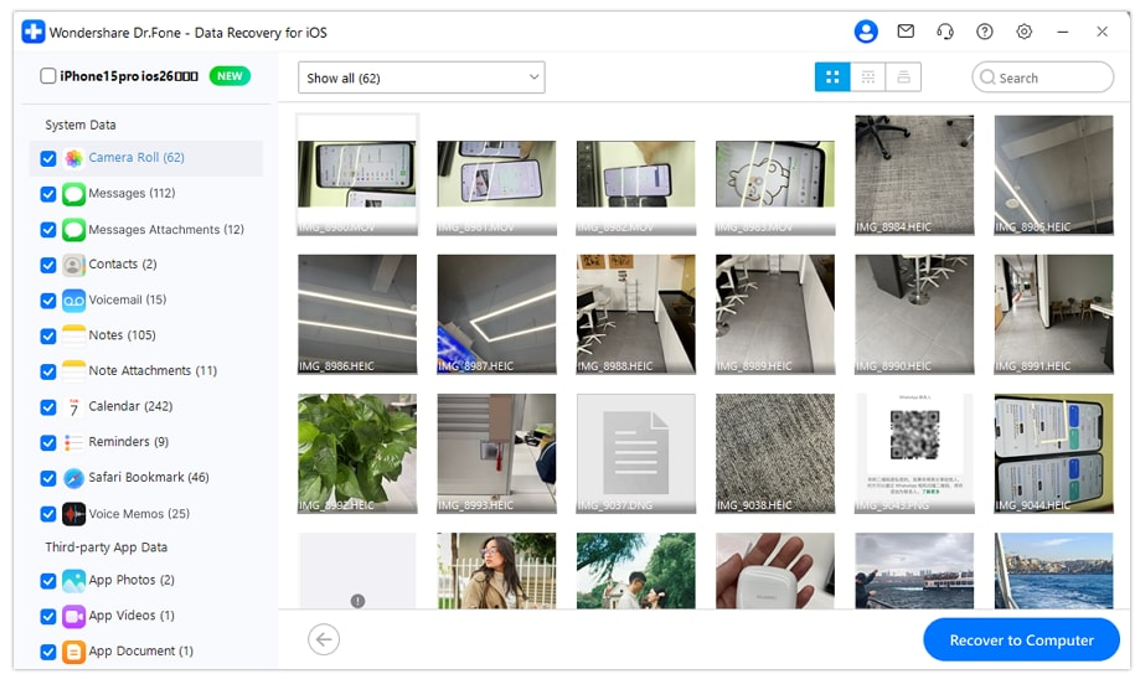
Step 6. Once the download is completed, Wondershare Dr.Fone presents the backup file contents.
Step 7. Pick the files you want to recover. Click the Recover to Computer button to save them without having to reset your iPhone.
Types of Data You Can Recover from iCloud Backup
Benefits of Data Recovery without iPhone Reset
- Recovery does not affect your existing photos, apps, and settings at all.
- You don’t have to wipe the iPhone, download apps again, and adjust settings after that.
- Restore just the items you want, such as pictures, text messages, or contacts, rather than the entire backup.
- A perfect solution for those who use their iPhones regularly and don’t wish to be too interrupted.
Tips to Prevent Future Data Loss
- Be prepared to recover your data using reliable recovery software if you accidentally delete files or your device breaks down.
- Enable iCloud Backup so your phone will back up automatically on a daily basis, thereby saving your latest data safely in the cloud.
- Have both iCloud and computer backups using Finder or iTunes to be sure the problem will not fail one backup.
- Make a habit of backing up important photos, videos, and work files to either external or cloud storage so you are not caught without any data in case of a problem.
Conclusion
Restoring data from an iCloud backup without erasing your iPhone is a convenient and safer way to recover valuable files while keeping your current data intact. Instead of performing a full device reset, selective recovery allows you to preview and restore only the items you need, such as photos, messages, contacts, and app data.
This makes the recovery process easier and more transparent by letting you access your iCloud backups, review recoverable files, and restore selected items without resetting your device.


